Invoicing and Payments
Bill clients and track finances seamlessly with EcoHexagon's comprehensive invoicing and payment management system.
Complete Invoice Management System
EcoHexagon provides professional invoicing with integrated payment tracking. Access via: https://ecohexagon.com/[workspace]/rs/invoices
Creating an Invoice
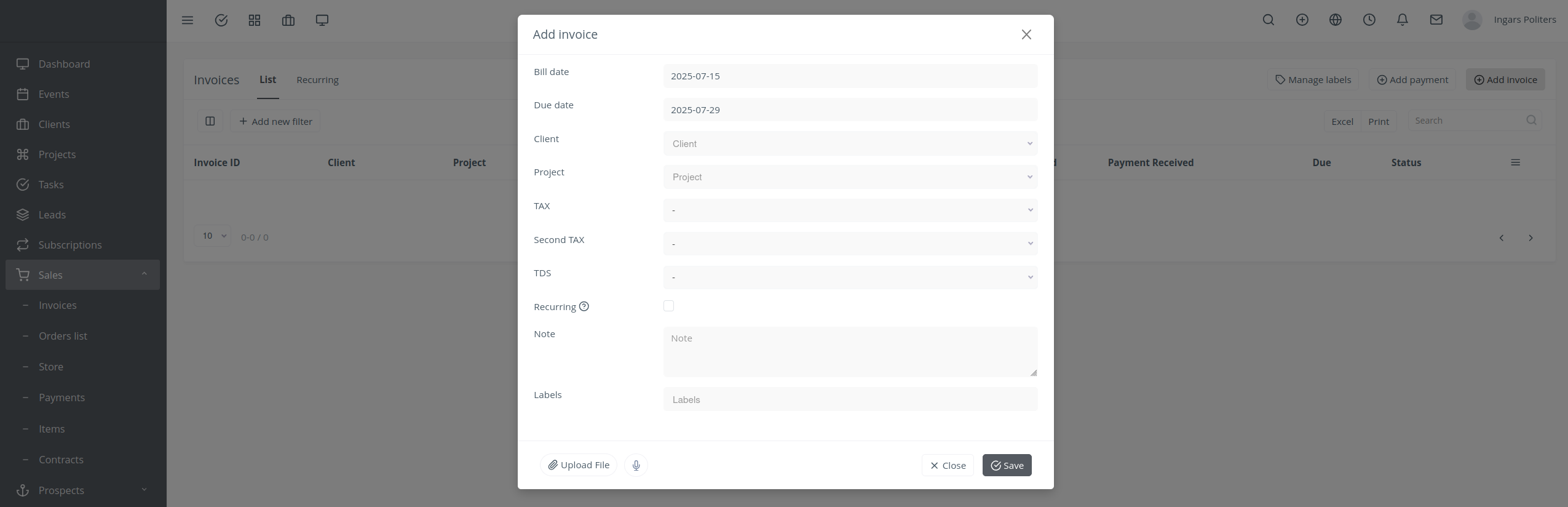
Method 1: Standard Invoice Creation
- Click Sales → Invoices.
- Click Add Invoice.
- Set Bill Date, Due Date, Client (required); link to project.
- Add taxes, notes, line items (import time/expenses).
- Click Save.
Method 2: Advanced Invoice Creation

Example: Complete Invoice Creation Process
Scenario: Creating monthly invoice for "Website Redesign" project
Invoice Details Setup
- Invoice ID: INV-2025-001 (auto-generated)
- Client: Acme Corporation
- Project: Website Redesign
- Bill Date: 2025-07-16
- Due Date: 2025-08-15 (Net 30)
- Currency: USD
Line Items from Time Tracking
- Frontend Development: 25 hours × $85/hr = $2,125
- UI/UX Design: 15 hours × $95/hr = $1,425
- Project Management: 8 hours × $75/hr = $600
- Subtotal: $4,150
- Tax (8.5%): $352.75
- Total: $4,502.75
Professional Invoice Features
- Company Branding: Logo and business information
- Payment Terms: Net 30 with late fee structure
- Payment Methods: Credit card, bank transfer, check
- Notes: "Thank you for your business. 50% deposit required."
Method 3: Automated Invoice Generation

Set up automated invoicing for recurring services and time-based billing:
- Recurring Invoices: Monthly, quarterly, or annual billing
- Time-Based Automation: Automatic generation from time entries
- Milestone Billing: Invoice generation based on project milestones
- Subscription Billing: Automated recurring service billing
Recording Payments

Example: Payment Processing Workflow
Scenario: Processing multiple payment methods for invoice INV-2025-001
Payment Recording Process
- Access Invoice: Navigate to invoice INV-2025-001 ($4,502.75)
- Record Payment: Click "Add Payment" button
- Payment Details: Enter payment information
- Status Update: System automatically updates invoice status
- Client Notification: Automatic payment confirmation sent
Payment Methods Available
- Credit Card: Visa/MC/Amex with processing fees
- Bank Transfer: Direct bank transfer with routing info
- Check: Physical check with clearing period
- Online Payment: PayPal, Stripe, or other gateways
Payment Scenarios
- Full Payment: $4,502.75 - Status: "Paid"
- Partial Payment: $2,000.00 - Status: "Partially Paid"
- Overpayment: $4,600.00 - Status: "Overpaid" (credit balance)
Advanced Payment Features
- Multiple Payment Methods: Accept various payment types
- Partial Payment Tracking: Handle installment payments
- Payment Reminders: Automated overdue notifications
- Late Fee Management: Automatic late fee calculations
- Payment Reconciliation: Match payments to invoices
Invoice Status Management

EcoHexagon tracks invoice status automatically throughout the payment lifecycle:
- Draft: Invoice created but not sent
- Sent: Invoice delivered to client
- Viewed: Client has opened invoice
- Partially Paid: Partial payment received
- Paid: Full payment received
- Overdue: Payment past due date
- Cancelled: Invoice cancelled
Financial Management Integration

Example: Overdue Invoice Management
Scenario: Managing overdue invoices with systematic follow-up
Overdue Management Process
- Identify Overdue: Filter invoices by "Overdue" status
- Review Timeline: Check days overdue and amount
- Follow-up Actions: Send reminder emails or make calls
- Escalation: Implement collection procedures
- Resolution: Process payment or write-off
Overdue Invoice Example
- Invoice: INV-2025-001
- Client: Acme Corporation
- Amount: $4,502.75
- Due Date: 2025-08-15
- Days Overdue: 15 days
- Late Fee: $45.03 (1%)
- Total Due: $4,547.78
Follow-up Actions
- First Reminder: 5 days overdue (automated email)
- Second Reminder: 15 days overdue (personal call)
- Final Notice: 30 days overdue (formal letter)
- Collections: 45 days overdue (external agency)
Invoicing Workflows
Follow these recommended workflows for efficient invoicing:
🔄 Essential Invoicing Workflows
- Monthly Billing Cycle: Generate invoices → Send to clients → Track payments → Update records (monthly)
- Project-Based Invoicing: Track project time → Create invoices → Bill clients → Record payments (per project)
- Client Payment Processing: Configure client portals → Enable online payments → Automate reminders (per client)
Troubleshooting: Common Invoicing & Payment Issues
🚨 Issue: Invoice Not Generating from Time Entries
Problem: Time entries not appearing when creating invoice
Root Cause: Time entries not marked as billable or wrong date range
Solution:
- Verify time entries are marked as "billable"
- Check invoice date range includes time entry dates
- Ensure time entries are approved if approval required
- Manually add time entries to invoice if needed
🔧 Issue: Payment Status Not Updating
Problem: Payment recorded but invoice status still shows unpaid
Root Cause: Payment amount mismatch or processing delay
Solution:
- Verify payment amount matches invoice amount exactly
- Check for rounding errors in payment amount
- Refresh invoice page or navigate away and back
- Contact support if status doesn't update within 24 hours
📄 Issue: PDF Invoice Formatting Problems
Problem: Invoice PDF has formatting issues or missing information
Root Cause: Template configuration or browser rendering issues
Solution:
- Check invoice template settings
- Verify company branding information is complete
- Try generating PDF from different browser
- Use "Print to PDF" as alternative method
🏦 Issue: Client Portal Payment Issues
Problem: Clients cannot access payment portal or process payments
Root Cause: Portal access settings or payment gateway problems
Solution:
- Verify client portal is enabled for client
- Check payment gateway configuration
- Test payment process with test transaction
- Provide alternative payment methods
Advanced Invoicing Features
🚀 Professional Invoicing Features
- Custom Invoice Templates: Professional branding and layout
- Multi-Currency Support: International client billing
- Tax Management: Automatic tax calculations
- Discount Management: Percentage and fixed amount discounts
- Deposit Handling: Partial payment and deposit management
📊 Financial Reporting
- Aging Reports: Track overdue invoices by age
- Payment Analytics: Analyze payment patterns
- Revenue Forecasting: Project future revenue
- Client Payment History: Track client payment behavior
🔄 Automation Features
- Recurring Invoices: Set up automatic billing cycles
- Payment Reminders: Automated overdue notifications
- Late Fee Automation: Automatic late fee calculations
- Payment Confirmations: Automatic client notifications
🆘 Invoicing & Payment Help Resources
Get Invoicing Help
- Quick Help: Troubleshooting Section Above - Common invoicing issues
- Detailed Guidance: Email & Localization Settings - Configure automated invoicing and payment reminders
- Advanced Features: Client Portal Setup - Enable client self-service payment processing
- Expert Support: Financial Support - Professional guidance
Related Invoicing Topics
- Time Tracking - Time-based billing integration
- Client Management - Client billing and payment terms
- Project Management - Project-based invoicing
- General Settings - Configure invoice branding and company details
Need help with specific invoicing features? Contact your system administrator or contact support for invoicing help