Task Management Interactions
Create, assign, and track individual tasks, linked to projects or standalone.
Quick Task Creation with Keyboard Shortcuts
Modern Task Creation Shortcuts
- T: Add Task Modal (quick single task)
- M: Add Multiple Tasks Modal (bulk creation)
- N: Add Note Modal (task-related notes)
- I: Add Project Time Modal (time tracking)
💡 Tip: Use these shortcuts from any page for instant task creation without navigation.
Complete Task Creation Process
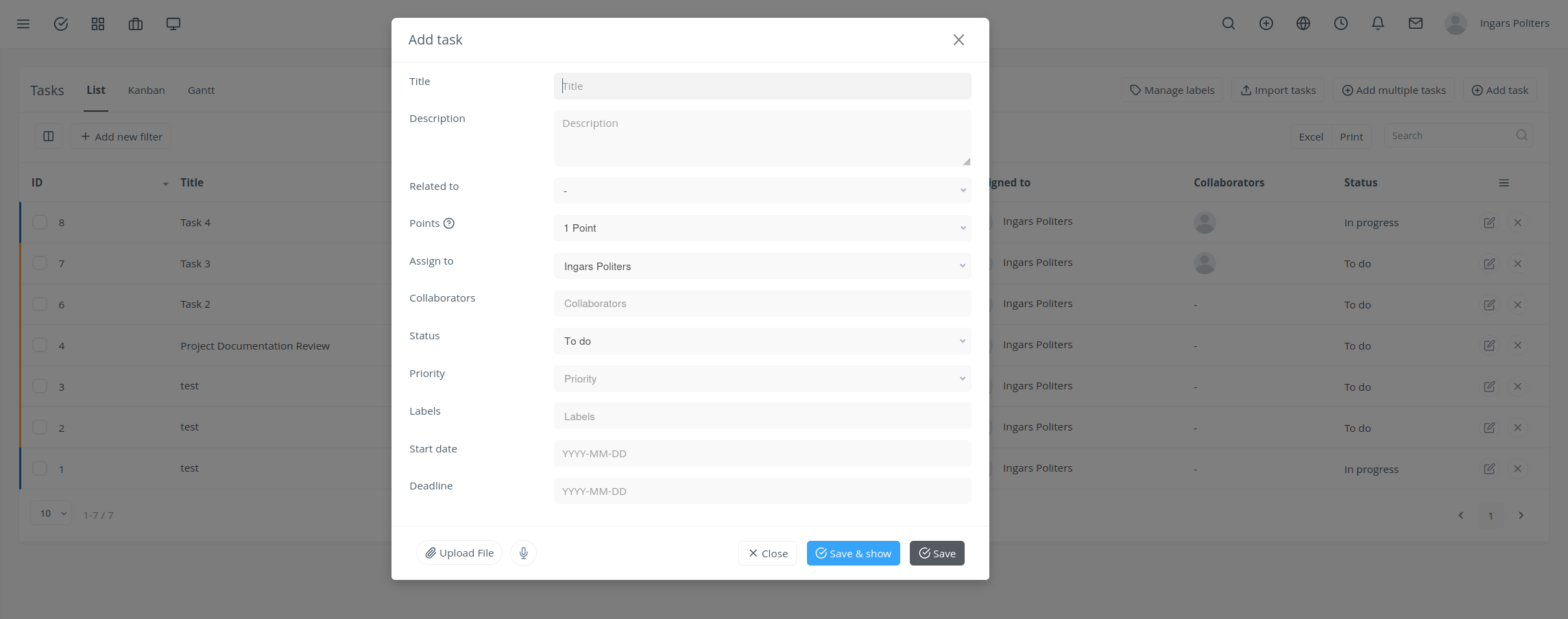
Method 1: Standard Task Creation
- Click Tasks in the sidebar (or from a project).
- Click Add Task.
- Enter Title (required); link to Related To (project/client).
- Set Assign To, Status (To Do, In Progress, etc.), Priority, Deadline.
- Add attachments or labels.
- Click Save.
Method 2: Advanced Task Creation with Complete Details
Example: Creating "Design Homepage Layout" Task
- Title: "Design Homepage Layout"
- Related To: "Website Redesign" project
- Start Date: "2025-07-20"
- Deadline: "2025-07-25"
- Milestone: "Design Phase"
- Assigned To: "Jane Doe"
- Collaborators: "John Smith", "Mary Johnson"
- Status: "In Progress"
- Priority: "High"
- Points: "8" (effort estimation 1-10 scale)
- Labels: "Design", "Frontend", "Critical"
- Description: "Create responsive homepage layout with modern UI design"
✅ Result: Comprehensive task with all tracking details and team collaboration setup.
Complete Task Management Views
View 1: Task List View - Detailed Table

Task Table Columns (Full Details)
- ID: Unique task identifier
- Title: Task name and description
- Start Date: When task work begins
- Deadline: Task completion deadline
- Milestone: Associated project milestone
- Assigned To: Task owner
- Collaborators: Additional team members
- Status: Current task state (To do, In progress, Testing, Done)
- Priority: Task importance level
- Points: Effort estimation (1-10 scale)
- Labels: Categorization tags
Task Management Actions
- Add Task: Create new tasks
- Add Multiple Tasks: Bulk task creation
- Manage Labels: Organize task categories
- Add New Filter: Custom task filtering
- Excel Export: Download task data
- Print: Generate task reports
- Search: Find specific tasks
Advanced Filtering Options
- Status Filtering: Filter by To Do, In Progress, Testing, Done
- Priority Sorting: Order by High, Medium, Low
- Assignee Filtering: View tasks by team member
- Milestone Grouping: Organize by project phase
- Label Filtering: Filter by task categories
- Date Range: Filter by start date or deadline
View 2: Kanban Board - Visual Task Flow

Kanban Board Structure
- To Do: Tasks ready to start
- In Progress: Currently active tasks
- Testing: Tasks under review
- Done: Completed tasks
Kanban Features
- Drag and Drop: Move tasks between status columns
- Card Details: Quick view of task information
- Swimlanes: Organize by assignee or milestone
- WIP Limits: Control work in progress
- Color Coding: Visual priority indicators
- Quick Actions: Inline task editing
View 3: Gantt Chart - Timeline Management

Gantt Chart Elements
- Task Bars: Visual representation of task duration
- Dependency Lines: Show task relationships
- Milestone Diamonds: Key project checkpoints
- Progress Overlays: Completion percentages
- Critical Path: Key project timeline
- Resource Allocation: Team member workload
Advanced Task Management Workflows
Workflow 1: Complete Task Lifecycle

Example: "Design Homepage Layout" Task Lifecycle
- Task Creation: Created with full details and team assignment
- Work Begins: Status changed to "In Progress", time tracking started
- Collaboration: Team members added comments and file attachments
- Review Phase: Status changed to "Testing", review assigned
- Completion: Status changed to "Done", time logged, client notified
✅ Result: Complete task lifecycle with full tracking and team collaboration.
Workflow 2: Bulk Task Management

Example: Setting up Website Project Tasks
- Use "M" Shortcut: Open Multiple Tasks Modal
- Create Task List:
- "Design Homepage Layout" - Jane Doe - High Priority
- "Develop Frontend Components" - John Smith - Medium Priority
- "Setup Backend API" - Mary Johnson - High Priority
- "Content Creation" - Bob Wilson - Low Priority
- "Testing and QA" - Alice Brown - Medium Priority
- Assign Common Properties: Project, milestone, labels
- Save All Tasks: Bulk creation with consistent formatting
✅ Result: Efficient project setup with consistent task structure.
Workflow 3: Task Collaboration and Updates

Example: Team Collaboration on Complex Task
- Task Assignment: Primary assignee with collaborators
- Progress Updates: Regular status changes and comments
- File Sharing: Attach design files and documentation
- Review Process: Team review and feedback
- Completion: Final approval and closure
✅ Result: Seamless team collaboration with full communication tracking.
Task Management Tips
Tasks Not Appearing in Views
If created tasks aren't showing in List or Kanban views, check active filters and adjust date range filters as needed.
Task Assignment
To assign tasks to team members, verify team members are added to the project with appropriate permissions.
Gantt Chart Display
For Gantt chart functionality, ensure tasks have both start dates and deadlines set.
💡 Tip: Use "M" shortcut for bulk task creation when setting up new projects.
✅ Best Practice: Use clear titles (e.g., "Design Logo for Acme") and points for effort estimation to improve project planning.